How do I restore a backup with jetbackup?
Back to web hostingOn our shared hosting servers, in many cases you can restore a backup yourself.
On newer servers, this is done through JetBackup. On older servers, this can be done through the Advanced Backup module. Which option is available depends on the server hosting package.
Step 1: logging in
Log in to our customer portal via: my.oxxa.com.
Click on Hosting in the left menu.
Behind the relevant hosting package, you will see three icons on the right side. Click on the icon with the door and arrow to open the hosting control panel.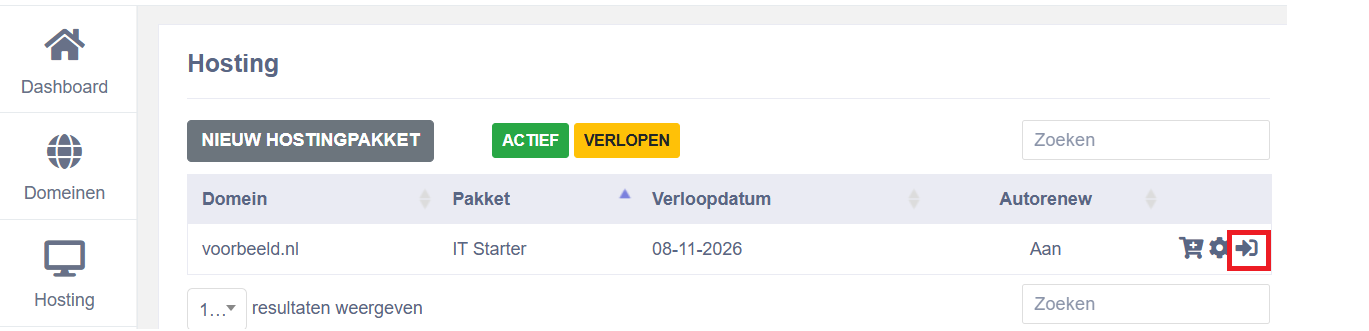
Note: A new window will open. If this window does not appear, check if the browser's pop-up blocker is blocking the window.
Step 2: Opening JetBackup
- In the left menu, click on Additional Features.
- Then choose JetBackup.
Step 3: Choose a backup
- Select the component you want to restore. For restoring website files, choose Home Directory.
- Click on the desired date.
- Then click Change Files Selection.
Step 4: Select files
- Open the domains folder.
- Open the folder of the corresponding domain name.
- Then open the public_html folder.
- Check the File Name check box so that all files and folders are selected.
- Click Select Files.
Step 5: Restore Backup
- Click Restore.
- JetBackup will now restore the selected website files.
Depending on the size of the website, the restore may take several minutes. During this process, we recommend not making any changes to the website.
Note: The above steps only restore website files. If you also want to restore a database, you can use the Databases section within JetBackup to do so.
Back to web hosting